
Control wall thickness and height with modifiers
Where untilless mesh modelingedit withWhether you can do it is greatly related to work efficiency in modeling.
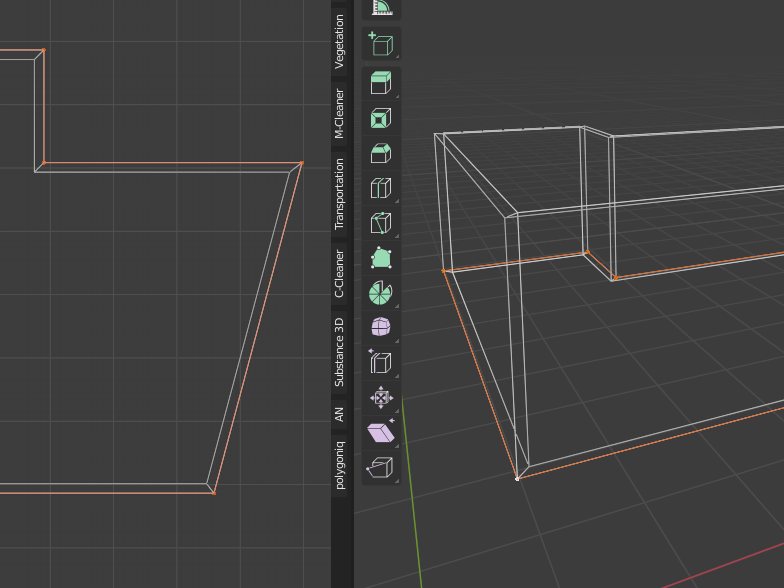
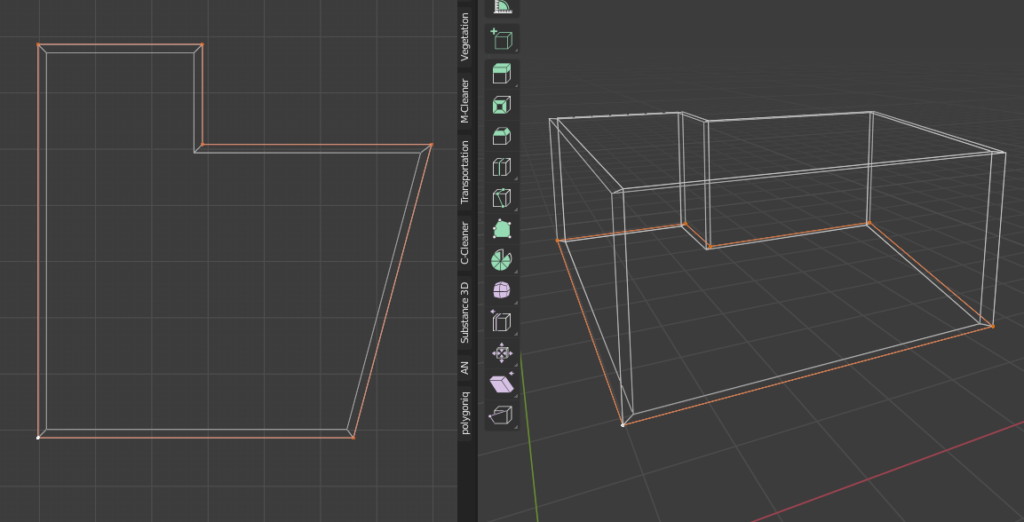
If you want to create a wall-like mesh with thickness and height, which frequently occurs in architectural visualization, model only the reference line of the wall,Thicknessorheightofcontrol with modifiersIf possible, work efficiency will increase at once.
Enter the shape of the room with a single line
For example, let's assume a room composed only of vertices and edges as shown below.
Extend the vertices to create the shape of the room.
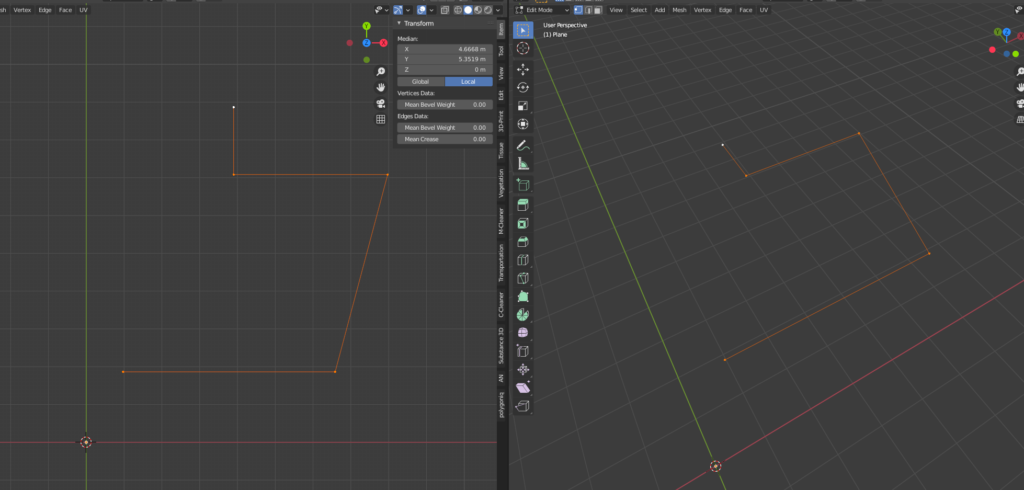
It is OK not to stick the surface.
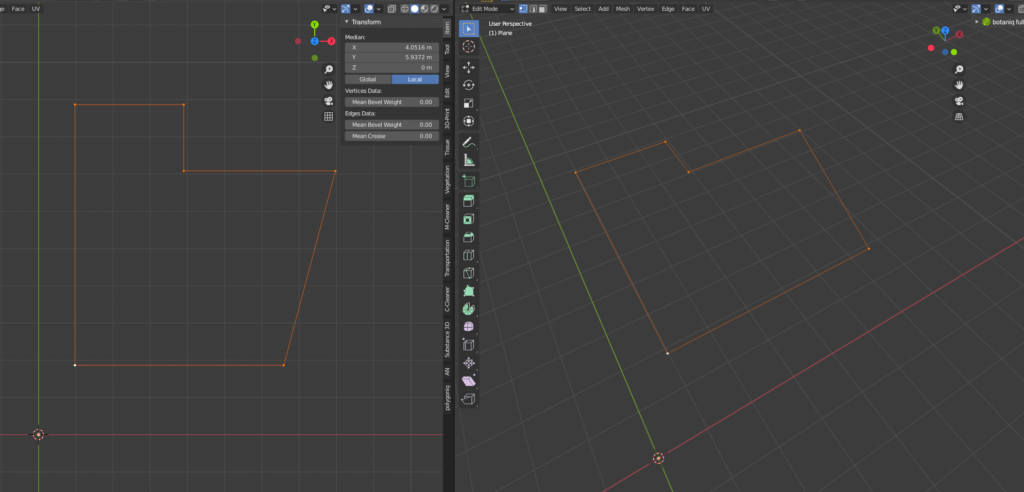
add modifier
First, add a Screw modifier to control the height.
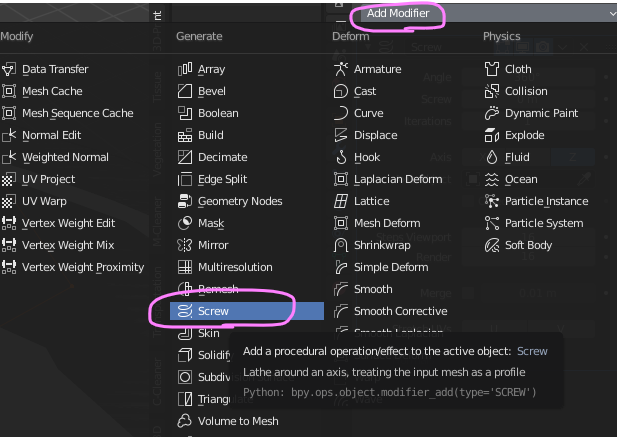
At this stage, it's okay if the model looks broken.
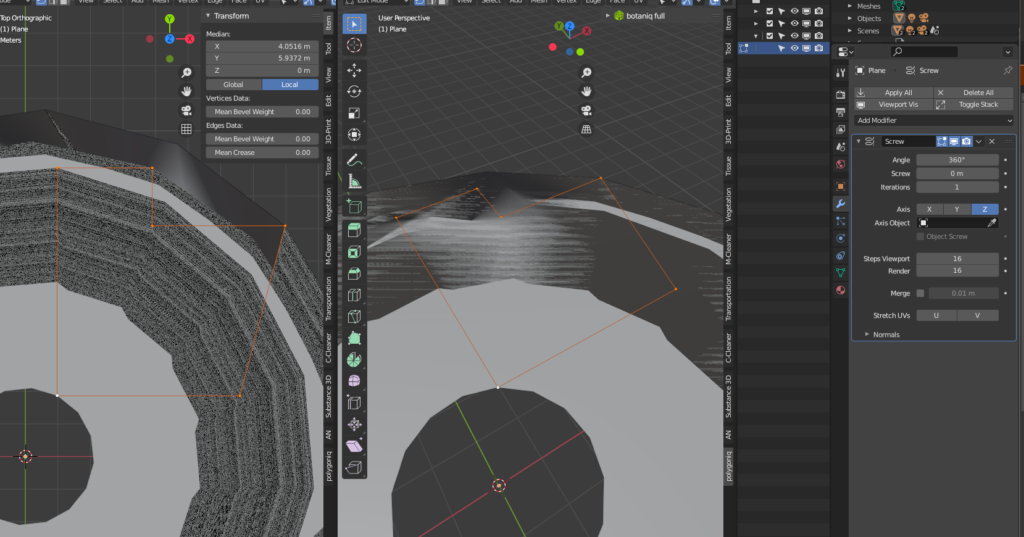
If you change the settings of the Screw modifier to the following, a thin wall will stand up.
- Angle: 0°
- Screw: Enter the wall height. This time, it was set to 2.7m.
- Axis: Z
- Steps: 1
- Smooth Shading in Normals: Uncheck
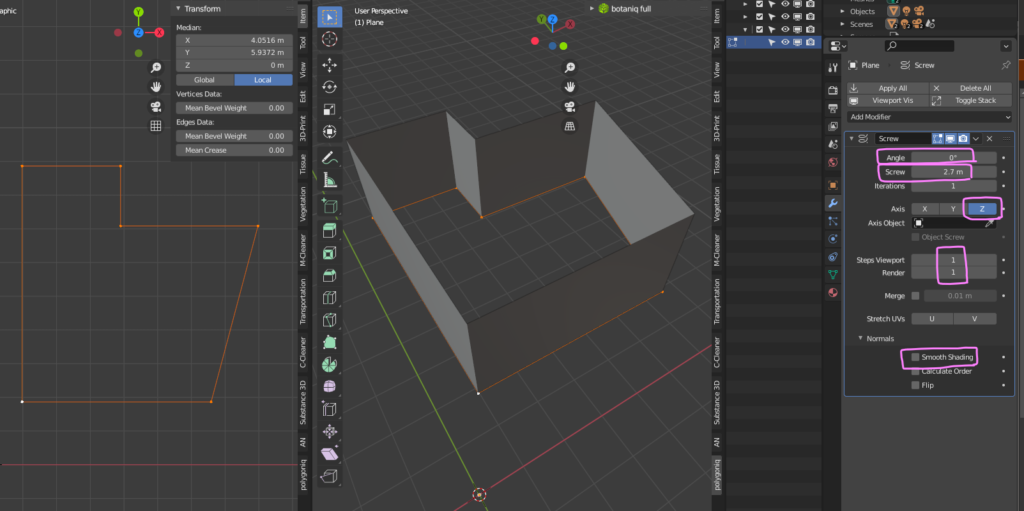
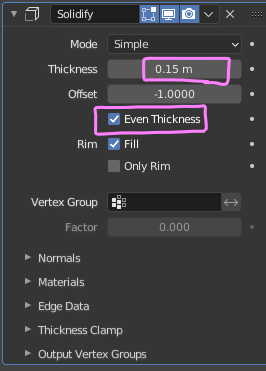
Then add a Solidify modifier to control the thickness.
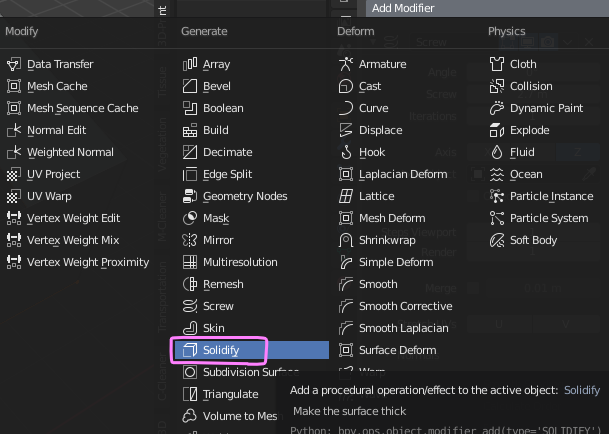
hereThickness(Thickness) is set to 15 cm.
Even Thicknessalso check the
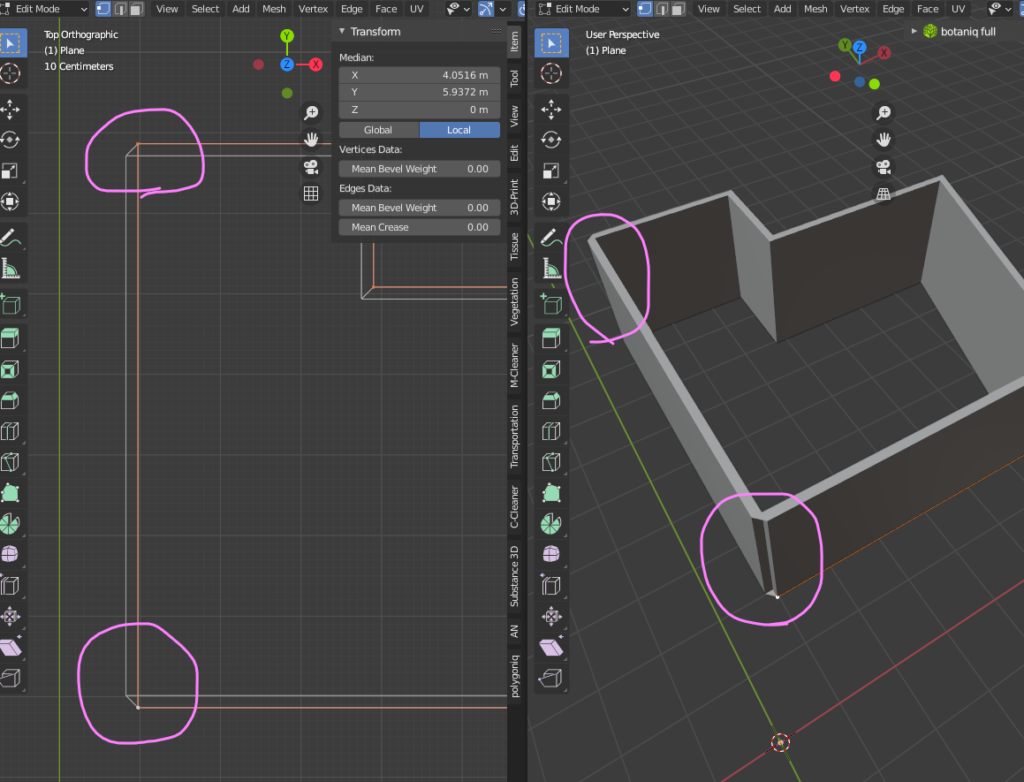
Thickness has been added to the wall, but some faces have flipped.
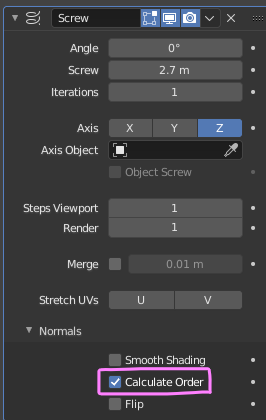
Go back to the Screw modifier settings and in NormalsCalculate Ordercheck box.
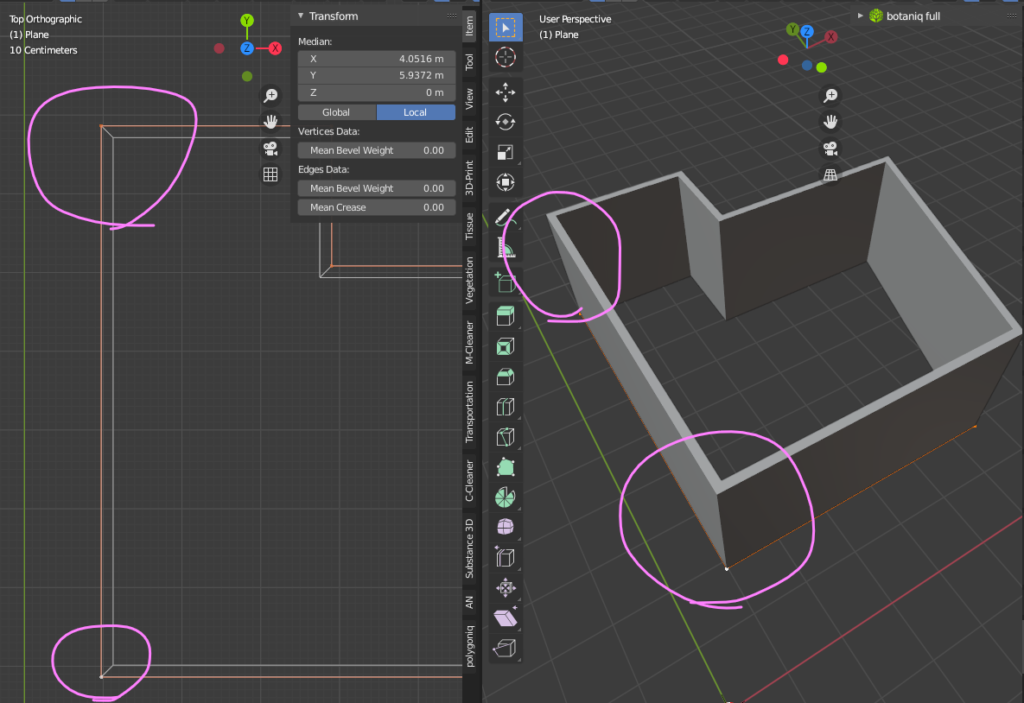
The Flip has been fixed.
These steps determine the wall height and thickness.Control by numerical input of modifierIt is now possible.single lineandEdit Wall ShapeI think you can do it, and work efficiency will go up a lot. thisCopy single lineCreate floors and ceilingscanSo I recommend it.
Tips for this timeChris P.I'm referring to your video. For those who are pursuing Blender's parametric modeling, very useful information has been published. Below is a link to Chris P's channel.
 EN
EN  JA
JA