
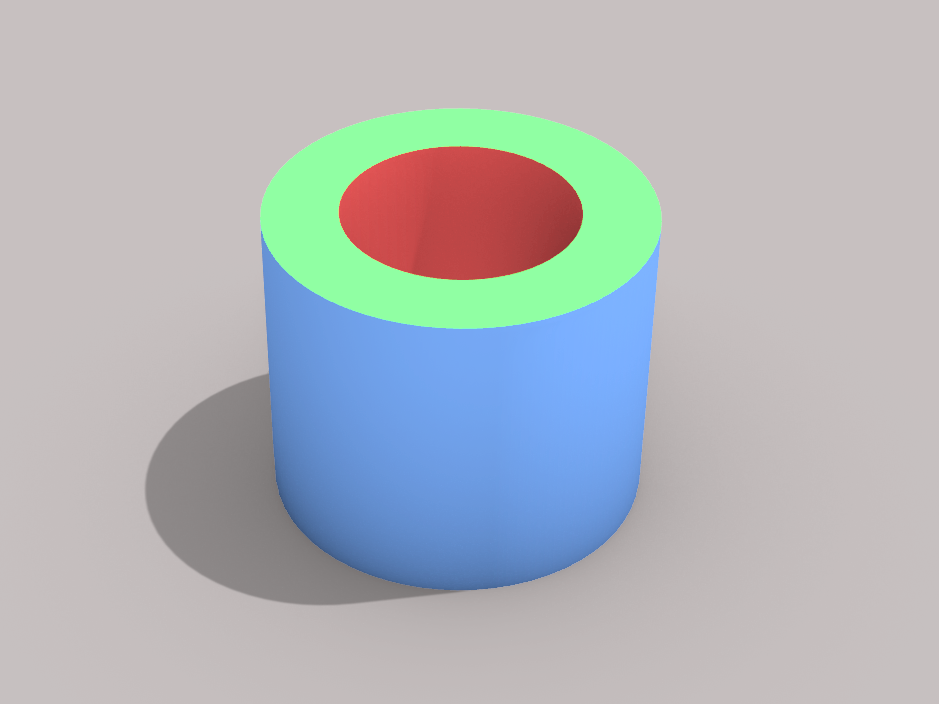
I didn't think Rhinoceros would let you assign multiple materials to a single object, but it was easy.
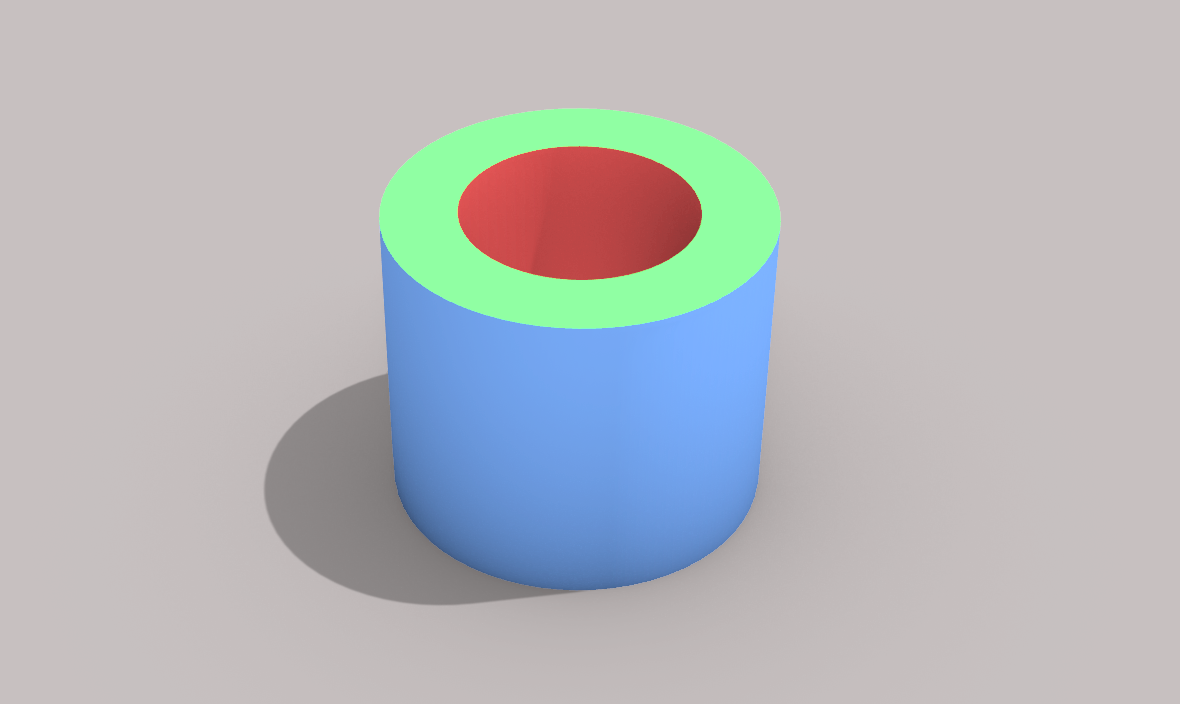
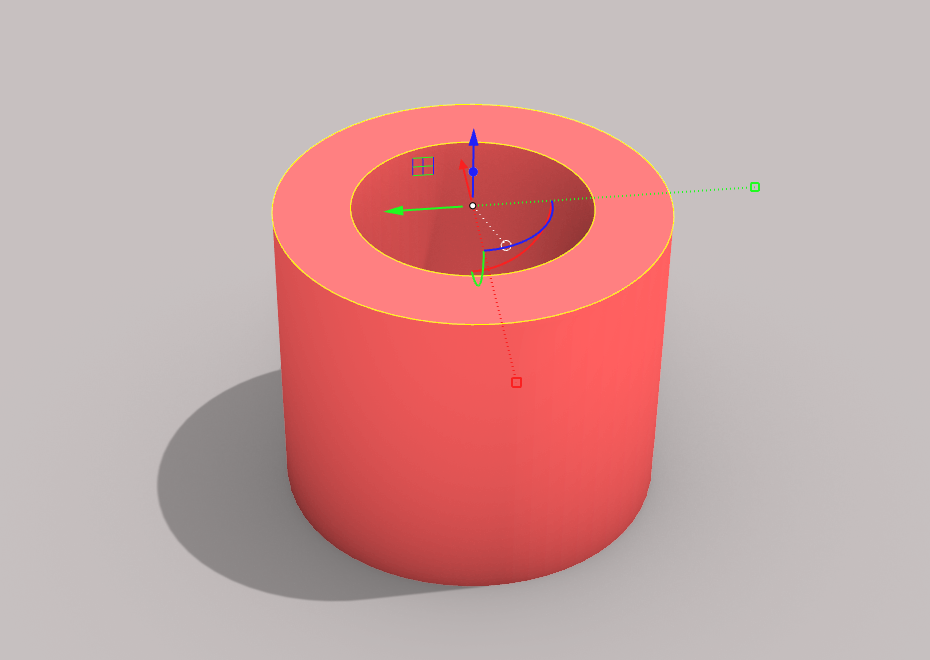
Try assigning different materials to each side of a single tubular object like the one below.
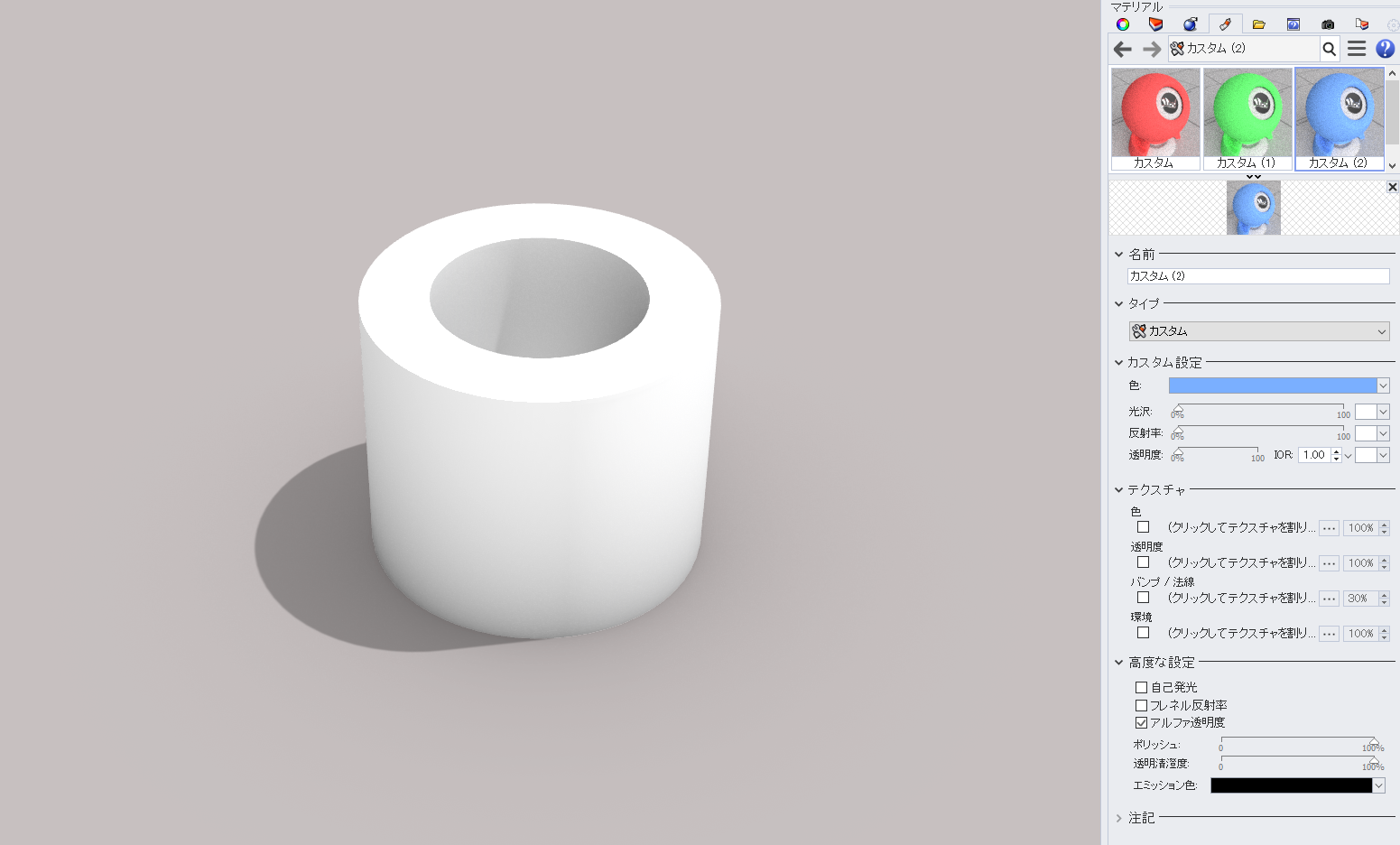
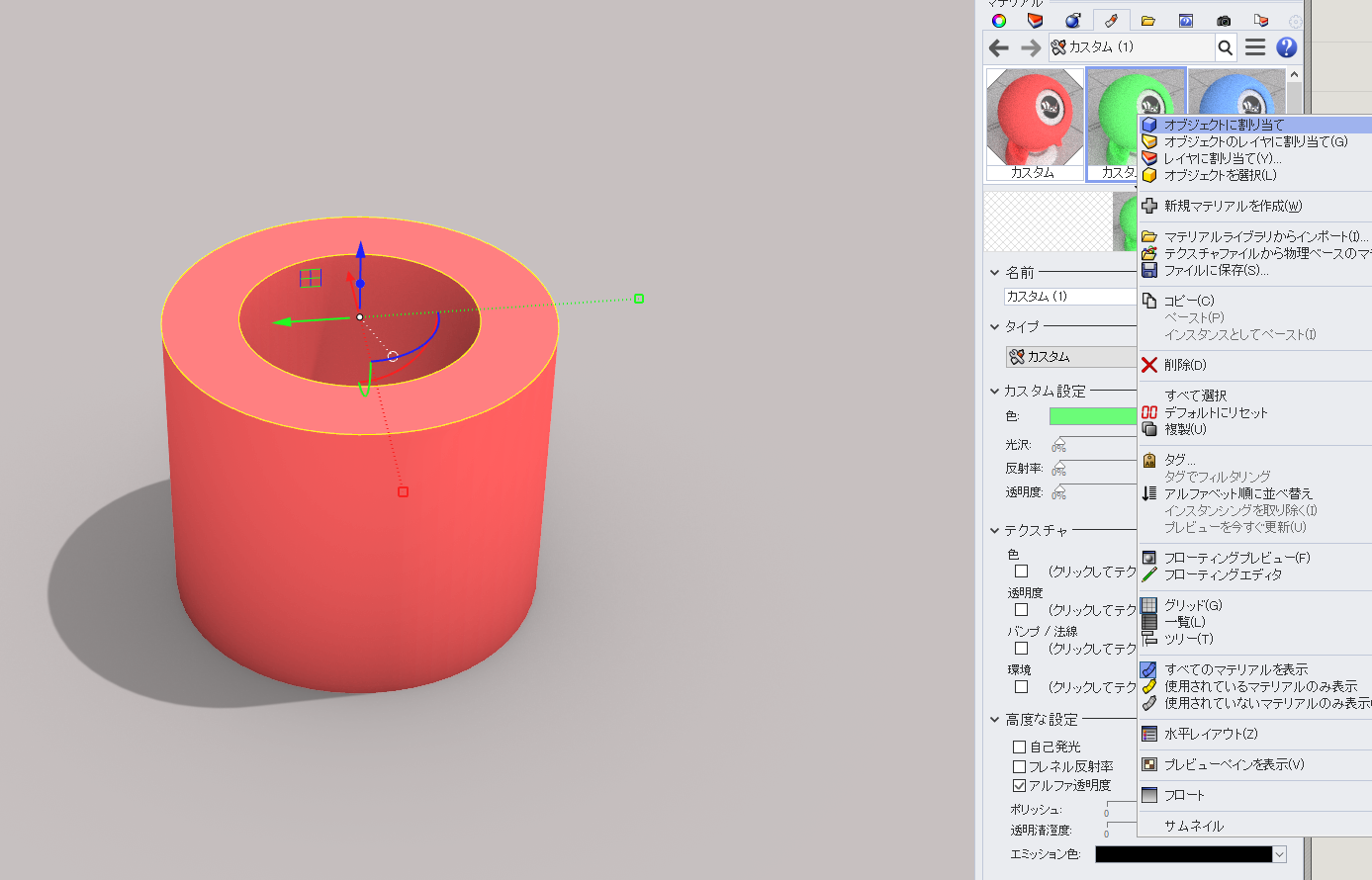
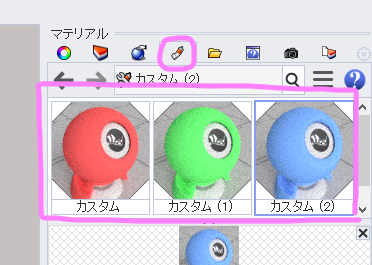
The usual way to assign a material is to select the object, then right-click on the material and select Assign to Object.
A single material has been assigned to the entire object.
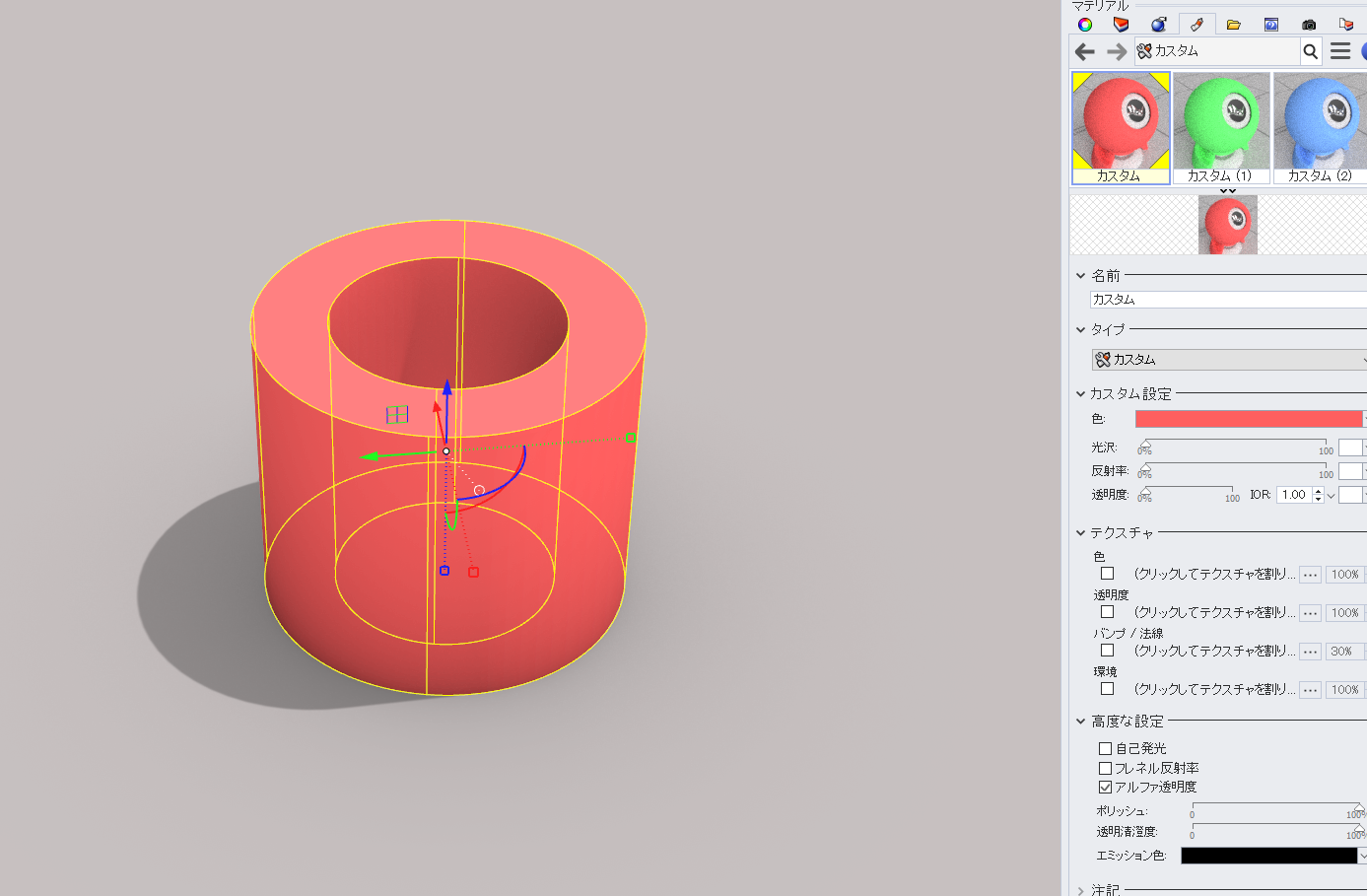
Now Ctrl+Shift-click to select the top surface of the tube.
In this state, try assigning another material.
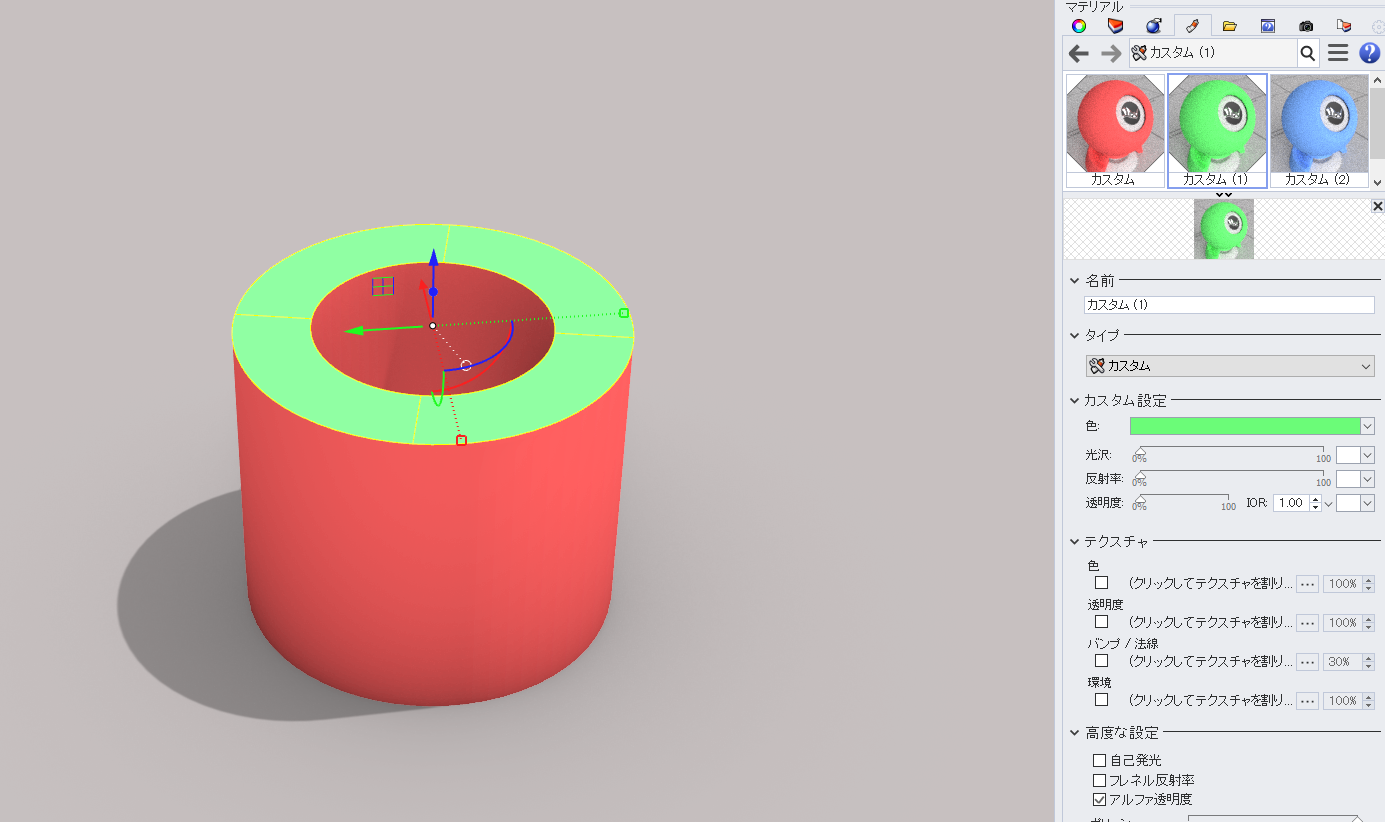
A different material was assigned only to the selected top face.
I also assigned a different material to the sides.
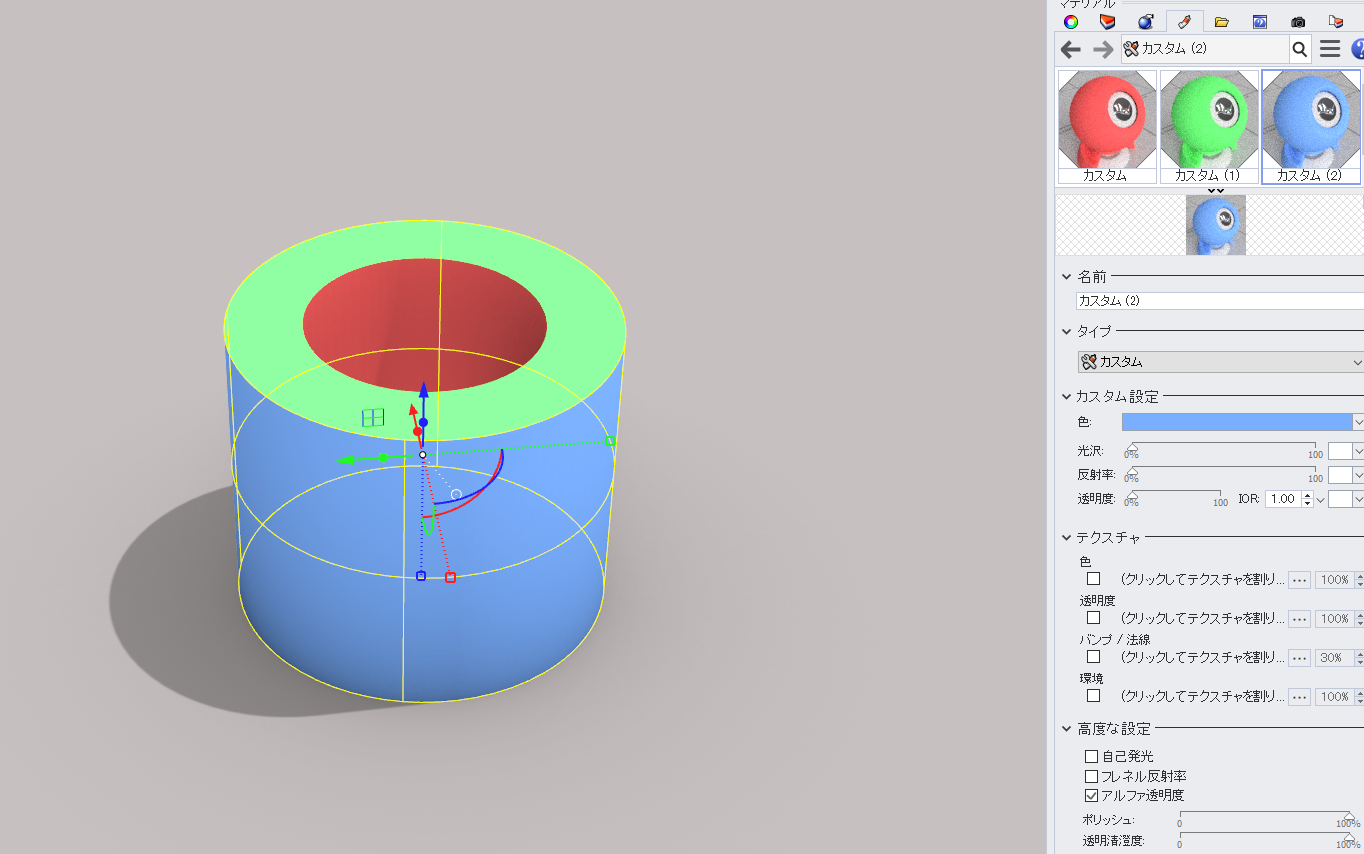
I thought 3DCAD like Rhinoceros didn't have the concept of material slots, but that's not the case.
 EN
EN  JA
JA